Logos in Headers Reference
This page describes CrossTable's fixed logo data roles (colLogoLvN/rowLogoLvN) and its Logos card. CrossTable InCell Charts replaced both with a unified, uncapped ⚙ editor and a zero-cost label→logo lookup — see Table Headers instead.
Overview
Logos let you display images inside row and column headers — for example company or brand logos in a competitor comparison, or product icons in a key-account table.
Each header level has its own image field. You bind a DAX measure that returns a base64 image to that field, then control how and how big the logo appears from the Logos card in the Format pane.
Logos are provided as base64 data URIs through the visual's data fields — never as an external URL. Every image is passed through sanitizeImageDataUri before being rendered, keeping the visual certification-safe (see Security & certification).
Data Fields (Series)
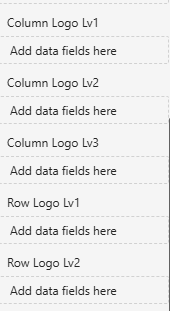
Logos are bound through five dedicated data fields, one per header level:
| Field | Applies to | Header level |
|---|---|---|
colLogoLv1 | Columns | Level 1 (outermost) |
colLogoLv2 | Columns | Level 2 |
colLogoLv3 | Columns | Level 3 |
rowLogoLv1 | Rows | Level 1 (outermost) |
rowLogoLv2 | Rows | Level 2 |
Each field accepts a measure returning a base64-encoded image (PNG, JPEG…), typically in the form:
data:image/png;base64,iVBORw0KGgoAAAANS...
A common pattern is a DAX measure that looks up the logo for the current header value:
Brand Logo =
SELECTEDVALUE( Brands[LogoBase64] )
Bind that measure to the field matching the level where the brand appears (colLogoLv1 if brands are the first column level, rowLogoLv1 if they are the first row level, and so on).
Logos Settings (Format pane)
All display options live in the Logos card of the Format pane.
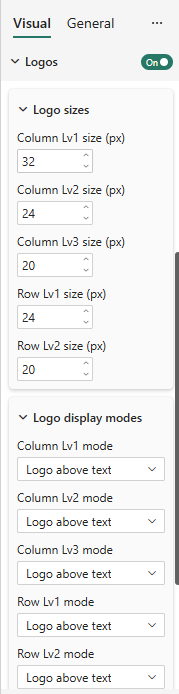
Show logos
Setting: Show logos
Type: Toggle
Default: Off
Master switch. When off, no logo is rendered even if the image fields are bound.
Display mode (per level)
Setting: Display mode — configurable independently for each of the 5 levels
Options: Logo only, Logo above text, Logo under text
Controls how the logo is combined with the existing header label:
| Mode | Effect |
|---|---|
| Logo only | The logo replaces the header text |
| Logo above text | The logo is shown above the header label |
| Logo under text | The logo is shown below the header label |
Size (per level)
Setting: Logo size (px) — one value per level
Sets the logo height (in pixels) for that level. Defaults:
| Level | Default size |
|---|---|
| Column Lv1 | 32 px |
| Column Lv2 | 24 px |
| Column Lv3 | 20 px |
| Row Lv1 | 24 px |
| Row Lv2 | 20 px |
Outer levels default to larger logos than inner levels, so the hierarchy stays visually balanced. Adjust each level so logos of different source resolutions align consistently.
Interaction with Tile Mode
When logos are enabled in Tile mode, tiles can be wider than usual and logos may have different natural sizes. Set Tile width to auto so every tile matches the widest header logo (measured after image decoding), keeping columns aligned.
See Tile Mode → Logos in headers for details.
Security & certification
- Logo images are supplied as base64 data URIs only — no external URL is ever requested.
- Every image is sanitized through
sanitizeImageDataUribefore rendering, so a malformed or unsafe data URI is rejected rather than displayed. - This keeps the logos feature compliant with Microsoft Power BI certification requirements (no external network access from the visual).
Examples
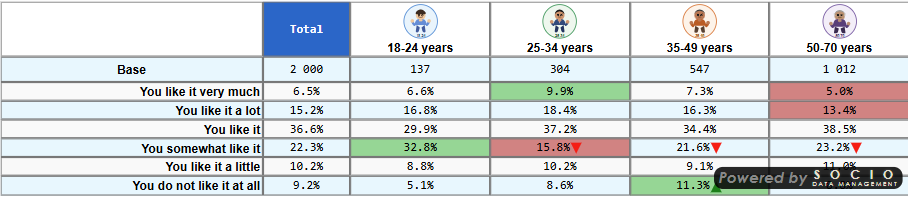
Column logos on level 1, Logo above text mode — an avatar sits above each age-group header:
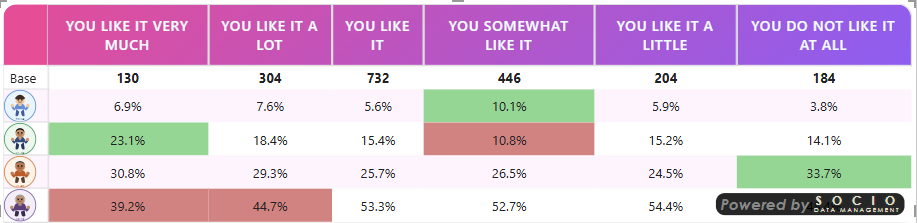
Row logos used as header icons — the same avatars identify each row group in a row-oriented layout:
Troubleshooting
Logos don't appear
Check that Show logos is on and that the matching image field (colLogoLvN / rowLogoLvN) is bound to a measure returning a valid base64 data URI.
A logo shows for some headers but not others
The measure returns an empty/blank value for those header members. Ensure your logo lookup returns a base64 string for every value at that level.
The image is blank or broken
The data URI is malformed or was rejected by the sanitizer. Verify the string starts with data:image/…;base64, and contains valid base64 content.
Logos are misaligned or columns have uneven widths (Tile mode)
Set Tile width to auto so tiles equalize to the widest decoded logo. See Tile Mode.
Logos are too big/small at one level
Adjust the Logo size (px) for that specific level — each of the five levels has its own size setting.
For more help, see the Quick Start Guide or the Explore Table Features walkthrough.